
THE DRESS
A green evening dress.
She looks at the dress photos and chooses her size, then sees how it looks with a bag.
VIRTUAL TRY-ON FOR FASHION STORES
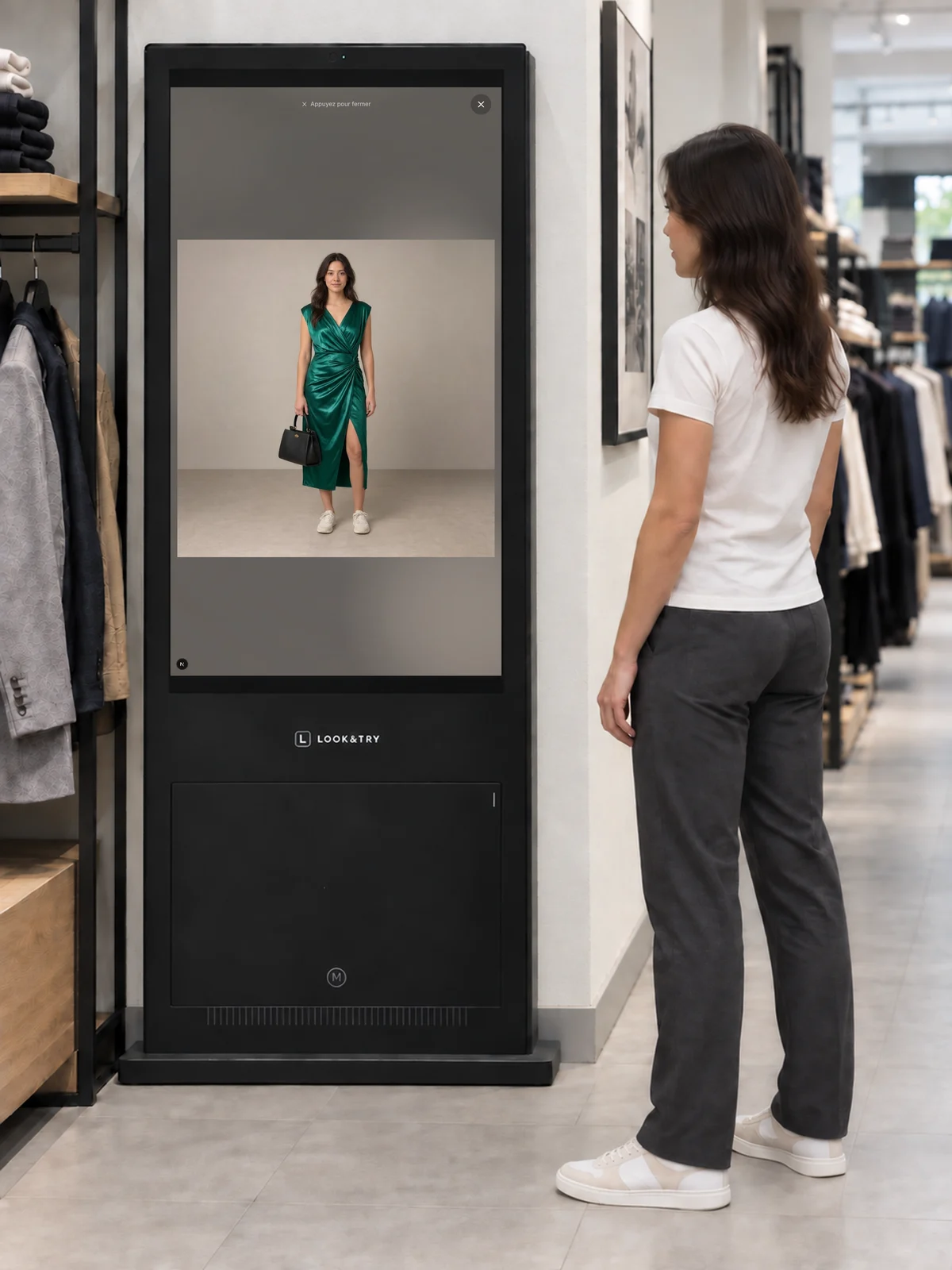
On their own photo, they see a dress, a suit or a complete outfit. Look&Try replaces the physical fitting room with a kiosk, with your team there to help them choose.
Explore virtual try-on with your own photo. For the best demo experience, we recommend using a computer. The demo opens in a new tab.
See the try-on, step by step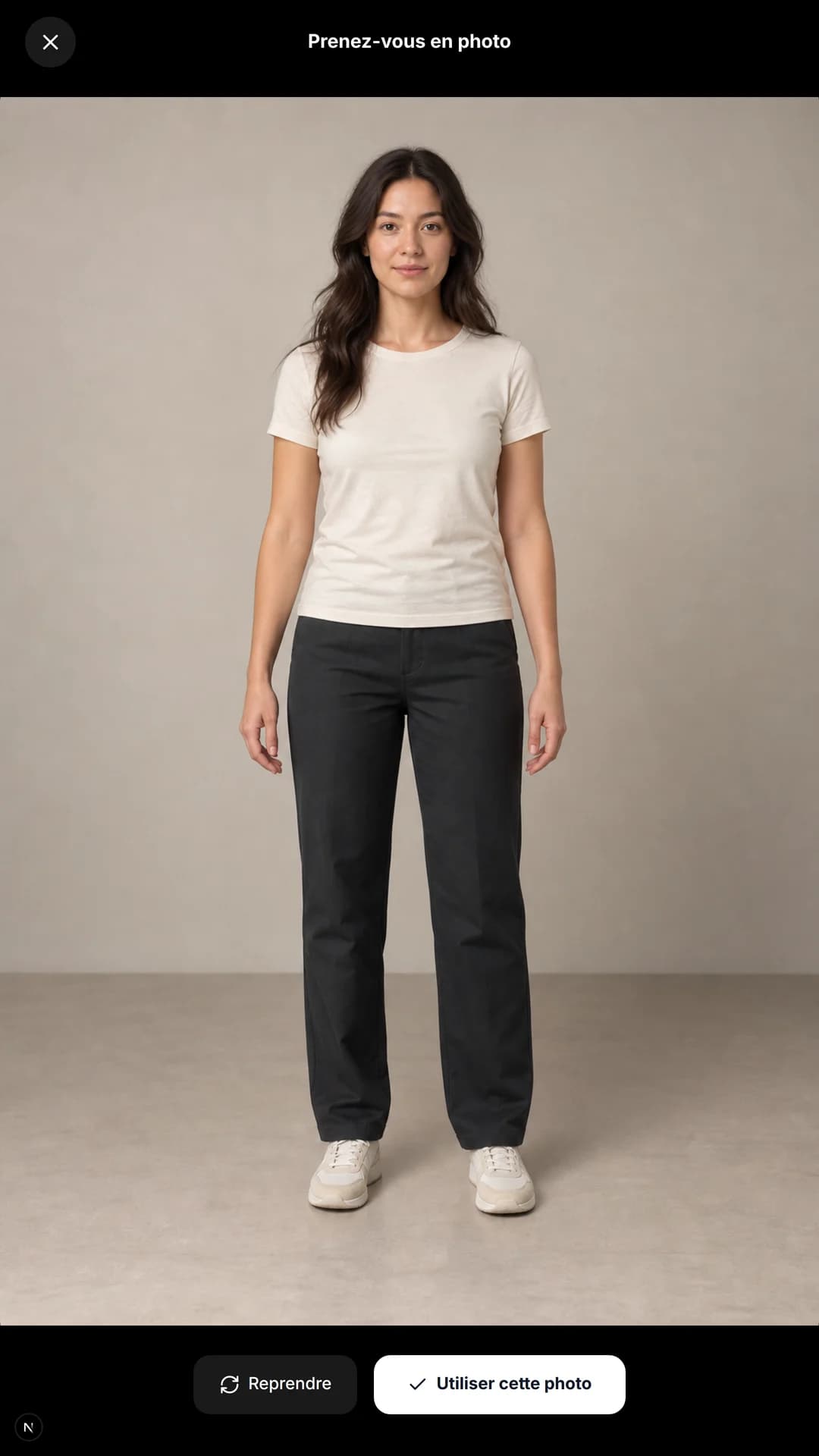
The same shopper, before the try-on.
REACHING NEW CUSTOMERS
A shopper likes a dress but doesn’t want to get changed. Another is unsure about an outfit. Invite them to see it on themselves at the kiosk, and introduce this way of trying clothes in your window or on social media.
You choose which products visitors can try on.
TRYING AN OUTFIT IN STORE
She has chosen a dress and is looking for a bag to go with it. Using her own photo, she tries them on together on the kiosk, without getting changed.
She stops at a green dress, looks at the photos and chooses a variant. She wants to see how this dress looks on her.
The customer looks for a garment in the store’s catalogue.
They look at the photos, choose a size and add the garment to their virtual fitting room.
She looks for a bag in your catalogue to go with the dress. Both pieces will appear in the same try-on.
They return to the catalogue to find a bag or shoes to wear with it.
They choose the accessory or shoe options before adding the item to their selection.
The dress and bag are ready. She chooses her photo so the result shows the outfit on her, not on a catalogue model.
They review the items in their virtual fitting room and check they have everything they want to try.
They choose the photo they want to use for the try-on.
She starts the try-on. The kiosk prepares the image using her photo and the two selected items.
With the photo and items ready, they start the try-on.
The screen shows that the try-on is in progress. The result appears when it is ready.
She opens the result full screen to look at the dress and bag together. She can compare her try-ons and choose the outfit she likes.
They see the result and can leave feedback about the try-on.
A tap opens the image full screen for a closer look, on their own or with a member of your team.
HELPING CUSTOMERS CHOOSE
When a customer isn’t sure, you often know another piece worth suggesting. At the kiosk, you look at the outfit together, listen to what they like or would change, and try another combination on their photo.
PUTTING AN OUTFIT TOGETHER
You may have just the bag or shoes to go with the garment they’ve chosen. Add them to the try-on so the customer can see the whole outfit.
THE DRESS
She looks at the dress photos and chooses her size, then sees how it looks with a bag.
THE BAG
The bag appears alongside the dress in the result, so she can see whether she likes them together.
THE TUXEDO
A customer choosing a tuxedo may also need something to wear with it. Here, he picks the suit before looking for shoes.
THE SHOES
The loafers are shown with the tuxedo, so the customer can look at the full outfit before deciding.
TRYING AN OUTFIT IN STORE
He has found a black tuxedo but hasn’t decided on the shoes. He adds a pair of loafers to see how the outfit looks on him.
He has found a black tuxedo. He opens the product page, looks at the photos and chooses a variant.
The customer looks for a garment in the store’s catalogue.
They look at the photos, choose a size and add the garment to their virtual fitting room.
Would you suggest loafers with this suit? He adds a pair to see how they look together.
They return to the catalogue to find a bag or shoes to wear with it.
They choose the accessory or shoe options before adding the item to their selection.
The suit and shoes are together. His photo lets him see the combination on himself without putting each item on.
They review the items in their virtual fitting room and check they have everything they want to try.
They choose the photo they want to use for the try-on.
He starts the try-on with both items. The kiosk shows that the image is being prepared before displaying the result.
With the photo and items ready, they start the try-on.
The screen shows that the try-on is in progress. The result appears when it is ready.
You look at the full-screen result with him. You can discuss the shoes he chose and anything he would like to change.
They see the result and can leave feedback about the try-on.
A tap opens the image full screen for a closer look, on their own or with a member of your team.
Product captures. Illustrative in-store setting.
AFTER THE VISIT
A customer might want time to think or a second opinion. If they choose to, they can receive their try-on images by email and look at them again after leaving the store.
YOUR CATALOGUE WORKSPACE
Your Look&Try workspace holds your products, photos and variants. Your team can organise collections and categories to prepare the items customers will be able to try on.
See how to manage my catalogueTeam members sign in with their own account.
They choose the organisation whose catalogue they want to work on.
The dashboard gives them access to products, stock and collections.
Filters help them find a product and open its page.
The product page holds its photos, description and variants.
Categories keep products organised and easier to find.
Demonstration workspace · original interface language
Some clothes keep appearing in try-ons. Knowing which ones can help you decide what to feature in your window or suggest to customers.
7-day example
See which days customers use virtual try-on most.
Cumulative example
If an item is often tried on, you can keep it in mind when planning what to feature next.
Cumulative example
See which categories customers try on. An item can belong to more than one category.
Cumulative example
See which kiosks get used most and which get less attention.
Cumulative example
of ratings are 4 or 5 out of 5
38 out of 50 ratingsSee the ratings customers leave after their try-on.
These figures cover virtual try-ons. They do not count product-page views or sales.
SUBSCRIPTIONS
The price covers the kiosk, software, installation and maintenance. Choose a plan for the number of stores you want to equip.
For one store
For bringing virtual try-on to your first store.
€500 incl. tax
per month
Kiosk included
Up to 5 stores
For several stores, with training for your teams.
€2,000
per month
Kiosks included
For your retail organisation
For planning a rollout across your stores and reviewing connections to your existing software.
Let’s talk
Kiosks included
Installation arrangements and subscription terms are agreed with our team. If you have two or three stores, let’s discuss the right plan for you.
GETTING YOUR STORE READY
For the demo, you can bring a few product photos and a photo of where the kiosk could go. You don’t need to have your whole catalogue ready.
We look at the products you want to offer, their sizes and colours, and the photos you have.
Customers need room to stand in front of the kiosk and take a photo without blocking the aisle. We also check the connections it will need.
We work out who will look after the catalogue and how your team can help customers use the kiosk.
YOUR QUESTIONS
Here are the practical details about the kiosk, try-ons and setup to help you decide whether Look&Try would suit your store.
Customers see themselves in your clothes without having to get changed. They can combine items from your store, compare their try-ons and choose what they like. You can look at the result together and suggest another piece you think would suit them.
Yes, for example a dress with a bag or a suit with shoes. The customer sees the pieces together in the result. During the demo, we go through the product types and photos that work for try-on with you.
Yes. Look&Try is designed to replace the physical fitting room: customers try clothes on their own photo and compare outfits without getting changed. The result is a visual simulation, not a body measurement or a guarantee of size or comfort.
The image takes time to prepare, and this can vary between try-ons. The kiosk shows that the try-on is in progress, then displays the result when it is ready. During the demo, you can follow the process from start to finish.
A message lets the customer know the try-on didn’t complete. They can try again when the service is available. If the problem persists, contact us so we can look into it. Try-on requires an internet connection.
The selected photo is sent to the try-on service to create the result. An email containing the try-ons is sent only if the customer asks for it. Before installation, we discuss image access and retention with you. For questions or deletion requests, email sales@lookandtry.com.
You can see the most tried-on products, categories, kiosk activity and feedback left after a try-on. That can give you ideas for what to feature in store. These figures describe how Look&Try is used; they do not tell you what was bought.
Yes, the kiosk is included, along with the software, installation and maintenance. The Single store plan includes unlimited try-ons. We discuss the subscription arrangements with you.
You need product photos and details, space for the kiosk and someone to look after the catalogue. Before installation, we check space, power and connectivity with you. We also discuss support for your team and how customer photos will be handled.
You can start with a selection of items, their photos, sizes and colours. Your team manages them in the catalogue workspace. If this information already exists in your tools, show us during the demo. We’ll work out what can be brought across and what needs preparing.
You keep your point-of-sale system. Look&Try handles the catalogue you present and the try-ons. If you want to connect it to other software, tell us what you use and we’ll check the options with your team.
Yes, the Single store plan covers one store with its kiosk. You can start there and see how people use it before considering other stores. You can also ask for a demo without committing to a purchase.
Tell us what’s on your mind. We’ll look at what’s possible for your store with you.
Ask us a questionLET’S TALK ABOUT YOUR STORE
Tell us what you sell and what you’d like to check. We’ll get in touch to arrange a demonstration and answer your questions.
Requesting a demo does not commit you to a subscription.
Prefer to send us an email?
sales@lookandtry.com